
Find and review duplicate files on Windows
Matching names or file sizes do not prove two files are duplicates. DiskBOX narrows candidates before reading their full contents, and publishes duplicate groups only after full hashing and exact byte comparison. Search and cleanup remain separate decisions.
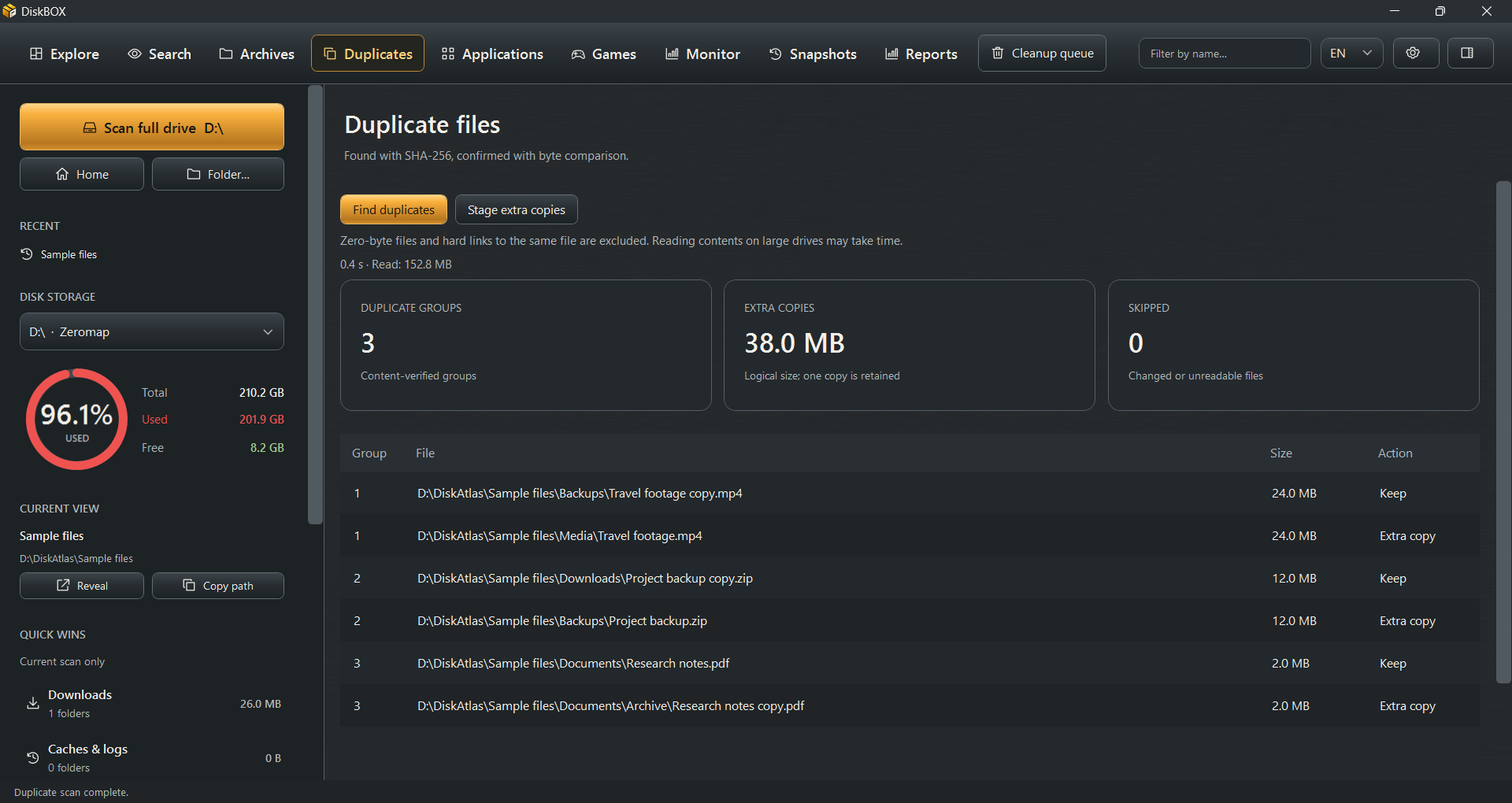
Choose the scope first
Complete a scan of the drive or folder you want to investigate, then open Duplicates and start the duplicate search. A narrower scope can reduce the amount of data read, but it also limits where matching copies can be found.
Follow the verification phases
DiskBOX filters by size, prefix and bounded middle/tail samples before full SHA-256 and exact comparison. Sampling alone never proves equality. Large files are still checked using streamed reads; the retained comparison buffer is not a file-size search limit.
Review the group and retained copy
Inspect each path before staging extra copies. One copy is retained per selected group. Zero-byte files and hard links to the same file are excluded, and changed or locked files may be skipped. Read those notices rather than assuming every candidate was verified.
Confirm cleanup separately
Open the cleanup review for staged extras. Validation must finish before confirmation is available, and files are revalidated before recycling. Cancel leaves the selected files in place. Knowing that contents match does not tell you whether an application still needs both paths.